

Download BlueJ – Free Java Learning Environment for Students
Overview: Why BlueJ Is the Ideal First Step into Java
BlueJ is a purpose‑built integrated development environment (IDE) that targets beginners who want to learn Java from the ground up. Created through a collaboration between Deakin University in Melbourne and the University of Kent in Canterbury, the tool combines a clean, visual interface with all the core components you expect from a professional Java workspace—text editor, compiler, virtual machine, debugger, and interactive object creation. Because Sun Microsystems (now part of Oracle) backs the project, you can be confident that the language features taught in BlueJ are fully aligned with the official Java specification.
The design philosophy behind BlueJ focuses on clarity rather than clutter. Instead of overwhelming new programmers with dozens of panels, toolbars, and settings, BlueJ presents a single window where code, class diagrams, and output coexist in an intuitive layout. This visual emphasis helps learners see the relationship between classes, objects, and inheritance without needing to master complex project structures first. A detailed PDF manual accompanies the download, guiding users step‑by‑step from installing the software to creating their first “Hello, World!” program.
While early versions of BlueJ occasionally suffered from stability issues—especially during compilation of large Swing applications—recent releases have ironed out most of those bugs. The development team continues to release incremental updates that address performance glitches, improve code completion, and refine the built‑in inspector panels. If you ever hit a snag, a vibrant Google discussion forum offers fast community support, making it easy for students and self‑learners to get help without leaving the IDE.
Overall, BlueJ stands out as a free, secure, and educator‑approved tool that lowers the barrier to entry for anyone wanting to explore object‑oriented programming. Whether you’re a high‑school student, a university freshman, or an adult hobbyist, BlueJ gives you a safe sandbox to experiment, debug, and grow your Java confidence.
Key Features of BlueJ
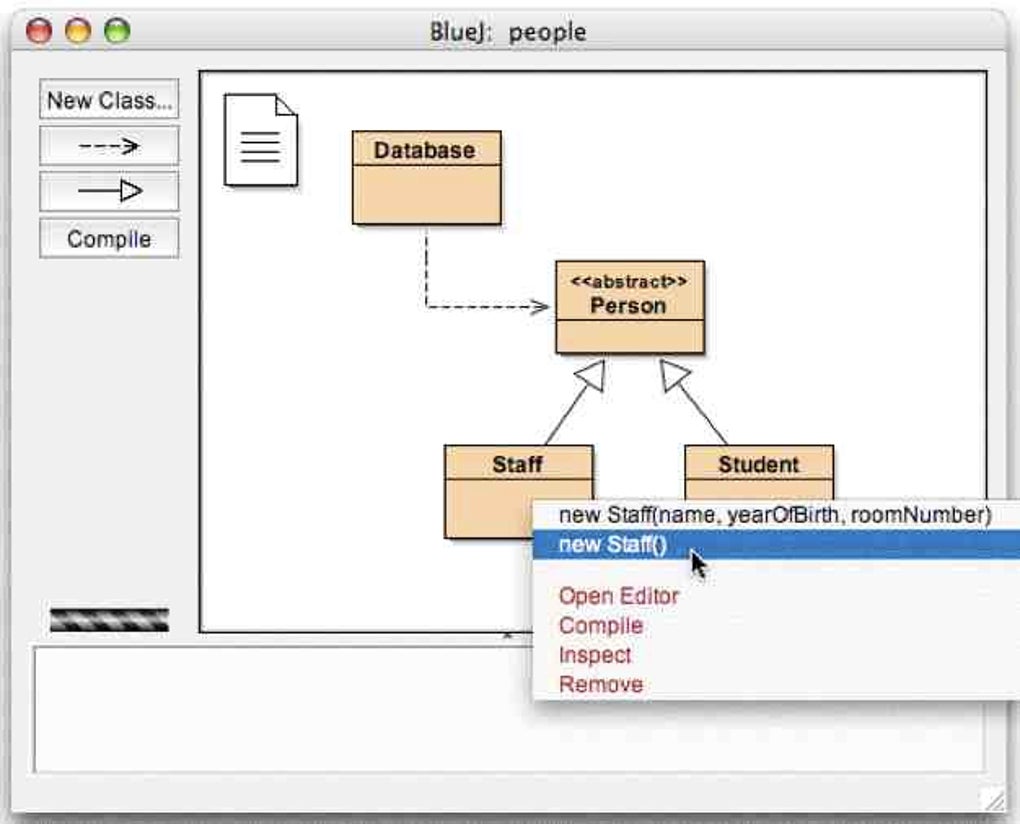
- Interactive Class Diagram: Visualize classes, interfaces, and relationships instantly; click any class to create objects or invoke methods without writing extra code.
- Integrated Editor & Compiler: Write, compile, and run Java code in the same window; syntax highlighting and basic code completion speed up learning.
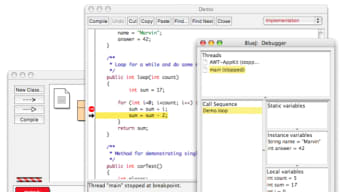
- Built‑in Debugger: Step through code line by line, watch variable values, and set breakpoints—all within a beginner‑friendly UI.
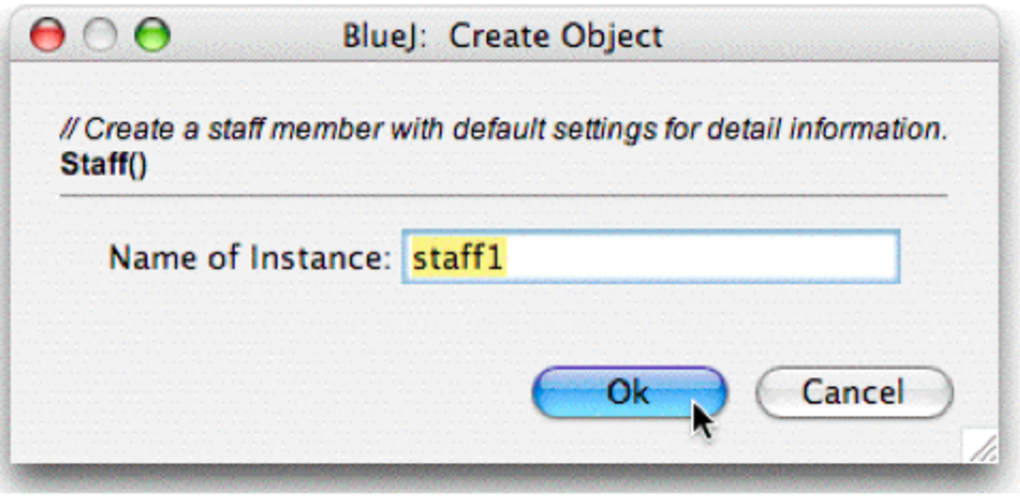
- Object Inspector: After creating an object, inspect its fields and call methods interactively, reinforcing concepts of encapsulation and state.
- Extensive Documentation: A downloadable PDF guide, context‑sensitive help, and an online tutorial series walk users through core Java topics.
- Cross‑Platform Support: Available for Windows, macOS, and Linux, ensuring that classroom labs and home computers can share the same environment.
- Open‑Source Roots: The project’s source code is publicly available, encouraging contributions and allowing educators to customize the IDE for specific curricula.
- Community Forum: A moderated Google Group where students and teachers post questions, share code snippets, and discuss common pitfalls.
Beyond the headline features, BlueJ subtly incorporates several quality‑of‑life improvements that keep the learning curve gentle. For example, the editor automatically saves files after each successful compilation, reducing the risk of data loss. The result inspector dynamically resizes to fit output, preventing truncated displays that can confuse beginners. Recent bug fixes also address rare incremental parsing problems and improve support for Swing‑based GUI projects, meaning that learners can now explore Java’s graphical libraries with fewer roadblocks.
Because BlueJ is free and open source, there are no hidden license fees or subscription models. This makes it an attractive option for schools with limited budgets and for self‑learners who want a reliable, zero‑cost environment. The software receives regular security patches, ensuring that the Java runtime bundled with BlueJ stays up‑to‑date with the latest vulnerability fixes.
Installation, First Steps & Compatibility
Getting BlueJ up and running is intentionally straightforward. Follow these steps to download, install, and launch your first Java program:
- Download the installer: Visit the official BlueJ website and select the installer matching your operating system (Windows .exe, macOS .dmg, or Linux .tar.gz). The download size is under 80 MB, making it quick even on slower connections.
- Run the installer: On Windows, double‑click the .exe file and follow the wizard prompts. macOS users drag the BlueJ icon into the Applications folder. Linux users extract the archive and run the provided
bluejscript. - Verify Java runtime: BlueJ bundles a compatible JDK, but if you already have a separate Java installation, the IDE will automatically detect it. Ensure you have at least Java 11 installed for the best experience.
- Launch BlueJ: After installation, open the application. The first screen presents a clean workspace with a menu bar, toolbar, and a central area for class diagrams.
- Create your first project: Choose “Project → New Project,” give it a name (e.g., HelloWorld), and click “Create.” BlueJ will generate a default class file named after your project.
- Write and run code: Double‑click the class to open the editor, replace the template with
public static void main(String[] args) { System.out.println("Hello, BlueJ!"); }, then click the “Compile” button. If the compilation succeeds, press “Run” to see the output in the terminal window.
BlueJ’s operatingSystem compatibility spans the three major desktop platforms:
- Windows 10/11 (64‑bit): Fully supported, with installer handling registry entries automatically.
- macOS 10.15 (Catalina) and later: The .dmg package integrates with the standard macOS security framework.
- Linux distributions (Ubuntu, Fedora, Debian, etc.): The tarball works across most flavors; users may need to install
libgtk‑3‑0and other UI dependencies.
Once installed, the first‑time user experience is designed to be as frictionless as possible. The initial project wizard includes a short tutorial that walks you through creating a class diagram, compiling code, and using the object inspector. For educators, BlueJ also offers a “Classroom Mode” that locks the UI to prevent accidental changes to the project structure, ensuring a controlled learning environment.
Should you encounter any issues—such as a compilation error that seems unrelated to your code—consult the built‑in “Help → Troubleshooting” guide or head to the community forum. Because the software receives regular updates, it is recommended to check the “Check for Updates” menu item monthly, guaranteeing you have the latest bug fixes and security patches.
Final Verdict: Pros, Cons, FAQ and How to Get Started
Pros
- Completely free and open‑source, ideal for budget‑conscious learners.
- Visual class diagram simplifies understanding of object‑oriented concepts.
- All‑in‑one environment (editor, compiler, debugger, inspector) reduces the need for extra tools.
- Cross‑platform support ensures consistency across Windows, macOS, and Linux.
- Regular updates and a supportive community mitigate early‑stage bugs.
- Educational focus with built‑in tutorials and classroom‑mode features.
Cons
- Not intended for large‑scale professional development; lacks advanced refactoring tools.
- Code completion and auto‑import features are basic compared to IDEs like IntelliJ IDEA.
- Occasional UI lag on older hardware, especially when handling complex Swing projects.
- Limited plugin ecosystem, so extending functionality requires manual configuration.
Frequently Asked Questions
-
Is BlueJ suitable for absolute beginners with no programming background?
Yes. BlueJ’s visual class diagram and step‑by‑step tutorials are designed specifically for newcomers. The interface avoids the overwhelming menus found in professional IDEs, allowing learners to focus on core Java concepts.
-
Can I use BlueJ to develop Android apps?
BlueJ is primarily a teaching tool for standard Java SE. While you can write plain Java code that later migrates to Android Studio, the IDE does not include Android SDK integration, so it’s not recommended for full Android development.
-
What Java version does BlueJ support?
The latest BlueJ release bundles a compatible JDK 11 and can also work with newer JDKs (up to Java 17) if they are installed separately. The IDE automatically detects the highest supported version on your system.
-
Is there a portable version that runs from a USB stick?
Yes. The Linux tarball can be extracted to any folder, including a USB drive, and run without installation. Windows and macOS also offer “portable” zip packages that can be launched directly, though you’ll need to set the appropriate execution permissions.
-
How can I contribute to BlueJ’s development?
Since BlueJ is open source, you can fork the repository on GitHub, submit bug reports, or propose new features via pull requests. The project maintainers also welcome contributions to documentation and tutorial videos.
Conclusion & Call to Action
BlueJ delivers a polished, beginner‑friendly Java environment that balances simplicity with enough depth to cover essential programming concepts. Its free licensing, cross‑platform availability, and strong educational pedigree make it a top choice for self‑learners, high‑school courses, and introductory university modules. While it may not replace heavyweight IDEs for professional software engineering, its focus on visual learning and interactive debugging gives students a solid foundation before they graduate to more advanced tools.
If you’re ready to start coding in Java without the steep learning curve of traditional IDEs, download BlueJ today, follow the quick installation guide, and begin exploring object‑oriented programming through hands‑on experimentation. Remember to check the built‑in tutorials and join the community forum for ongoing support. Happy coding!







